What is SATO?
SATO is a web-based project management platform that tracks meter installation jobs, customers, work orders, and inventory.
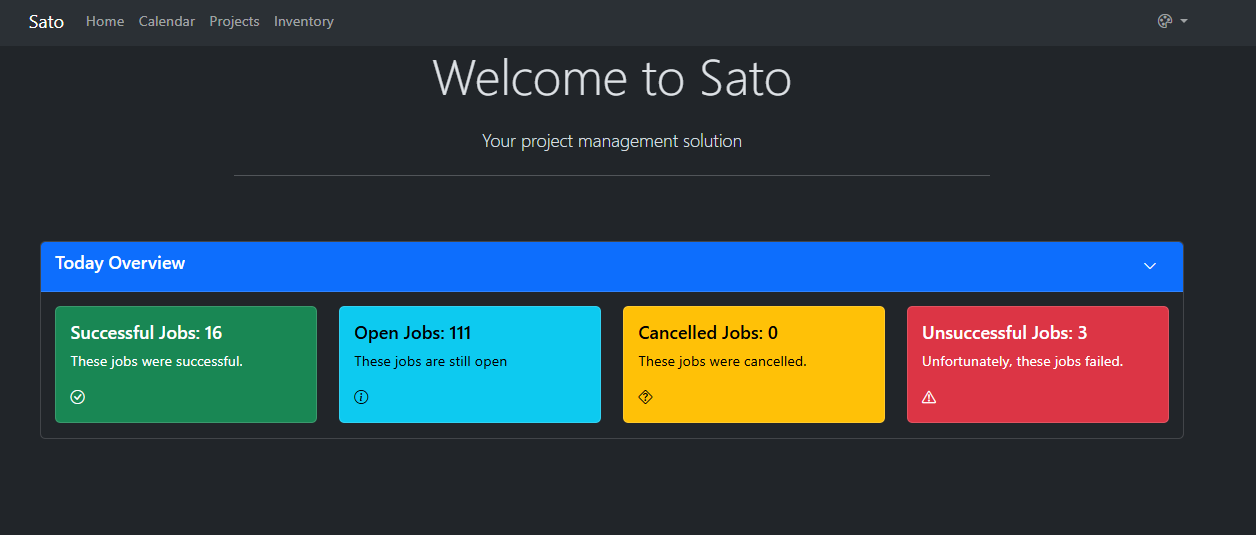
Home Page — Today Overview
Every time you open SATO, the Home page shows you a live snapshot of today's job status across all projects.
The panel can be collapsed using the ↓ arrow on the right side of the "Today Overview" header.
Calendar
The Calendar shows a monthly view of all scheduled jobs across every project. Navigate months using the arrow next to the month name.
Projects List
The Projects page shows all active meter replacement projects. Click a project name to open its full detail view.
| Name | Branches | Start Date | Status |
|---|---|---|---|
| LU | LU | 2023-09-01 | Active |
| Southampton | Southampton | 2026-01-01 | Active |
| MWC PIT | MWC-Middlesex PIT | 2025-04-01 | Active |
| MWC Surveys | MWC-SURVEY | 2026-01-01 | Active |
| DEP MTU ONLY | DEP-MTU-SI DEP-MTU-BX/QN | 2025-09-01 | Active |
| DEP | DEP-NYC DEP-BRONX DEP-BROOKLYN DEP-QUEENS | 2026-01-01 | Active |
Inside a Project — 7 Tabs
Every project has the same 7 tabs. Here's what each one contains:
The Overview tab shows the big-picture summary: total customers, customers with work orders, inventory SKUs, and branches. Below that you'll see customer status breakdown, refer reasons, and a live inventory demand table.
The Customers tab lists every customer location. Search by address, phone number, city, or company name. Filter by status (Completed, Scheduled, Unscheduled, Referred), meter size, refer reason, or WO date range. Click Details on any row to see full contact info, service location, and all custom fields from ServiceBridge.
The Work Orders tab lists all WOs for this project, pulled from ServiceBridge. Use the search bar to find a W.O. by work order number or address. Each row shows WO #, date, status, customer address, branch, and a description snippet. Click Details to open the full work order page — same view as the W.O. detail screen.
The Inventory tab shows all meter SKUs for this project — name, size, type, In Stock count, Installed count, and Total. Use the search box to find specific meter sizes quickly.
The Map tab plots customer or work order locations on a map. Toggle between Customers and Work Orders, then filter pins by status (Unscheduled, Scheduled, Completed, Referred) using the checkboxes on the left.
The Charts tab shows a bar chart of daily work order production — green bars for finished jobs, red bars for suspended jobs. Use the time range dropdown to view the last 7, 14, or 30 days.
The Calendar tab shows this project's scheduled jobs by day, broken down by meter size. Entries like 5/8" (91) mean 91 jobs of that size are scheduled. Use the arrows to navigate months.
Project Overview — Key Metrics
The four metric tiles at the top of every project give you an instant read on the project's scale.
Customers Tab — What's Inside
The Customers tab lists every customer location in the project. Click Details on any row to open the full customer record, which includes contact info, custom fields from ServiceBridge, and linked work orders.
The main list of all customer locations. Search by address, phone, city, or company name. Filter by status, meter size, or refer reason. Each row shows the customer address, status badge, and a Details button.
Inside a customer record you'll find all custom fields pulled from ServiceBridge — account number, old meter info, billing cycle, territory, and more. Pay close attention to Special Instructions, which may contain access restrictions, hazard warnings, or entry notes.
The customer detail page also shows all linked work orders — WO number, scheduled date, status, and job summary. Use this to quickly check the appointment history or current status for a specific location.
Work Orders Tab
Lists all work orders for the project. Filter by status, refer reason, meter size, or date range.
Project Inventory Tab
Shows all meter SKUs for this project with a breakdown of stock status across In Stock, Installed, and Other.
Map & Charts Tabs
Map Tab
Plots customer or work order locations on an interactive map. Use the toggle to switch between Customers and Work Orders view. Filter map pins by status using the checkboxes:
Charts Tab
Global Inventory Page
Accessible from the top nav bar, this page shows all meters and parts across every project in one list.
| Column | Description |
|---|---|
| Name | Part or meter name / SKU |
| Size | Meter size or part dimension (e.g., 6", 2", N/A) |
| Part Type | Category — Meter or Endpoint |
| Manufacturer | Manufacturer name (e.g., Elster AMCO, Sensus) |
| Base Qty | Base/minimum quantity level |
| Total | Total quantity in the system (blue badge) |